

Pinning the World with Unity Location Based AR
Why Location Based Augmented Reality Unity Is a Game-Changer for Creators and Brands
Location based augmented reality Unity lets you pin 3D digital content to real-world GPS coordinates — so users see virtual objects anchored to physical places through their phone camera.
Here’s the quick version of how to implement it:
- Create a Unity 2022.3.x project with the URP template and switch the platform to Android
- Import ARCore Extensions and Cesium Unity via the Package Manager
- Set up a Google Cloud Platform project and enable the ARCore API and Map Tiles API
- Configure XR Plugin Management to enable ARCore and Geospatial features
- Add an AR Geospatial Creator Origin to your scene and attach your API key via the Cesium Georeference component
- Place 3D objects using Geospatial Anchors (WGS84, Terrain, or Rooftop) at your target latitude and longitude
Unlike marker-based AR — which needs a physical image or object to trigger content — location-based AR uses GPS and real-time location systems (RTLS) built into smartphones. No markers needed. The experience activates based on where the user is, not what they’re looking at.
GPS precision typically ranges from 2–5 meters in good conditions and 10–20 meters in poor conditions, so understanding how to handle positioning errors is key to building a smooth experience.
I’m Samir ElKamouny, an entrepreneur and marketing expert who has worked with brands on cutting-edge digital experiences — including location based augmented reality unity projects that bridge the physical and digital worlds in ways that drive real audience engagement. Let’s walk through exactly how to build one of these experiences from scratch.
Must-know location based augmented reality unity terms:
- android augmented reality development
- how to develop augmented reality application
- cost to develop an ar app
Implementing Location Based Augmented Reality Unity Projects
When we talk about location based augmented reality unity, we are moving away from the “flat” AR of the past. Traditional AR relies on visual markers (like a QR code or a specific poster) to tell the phone where to place a 3D model. In contrast, location-based AR uses the Earth itself as the canvas.
This technology relies on a combination of technologies often referred to as Markerless AR or Geo-spatial AR. At its core, it uses Real-Time Location Systems (RTLS) to pull data from a device’s GPS, accelerometer, and gyroscope. By comparing these sensor readings against a global database of points of interest (POIs), Unity can accurately overlay virtual elements at specific real-world positions.
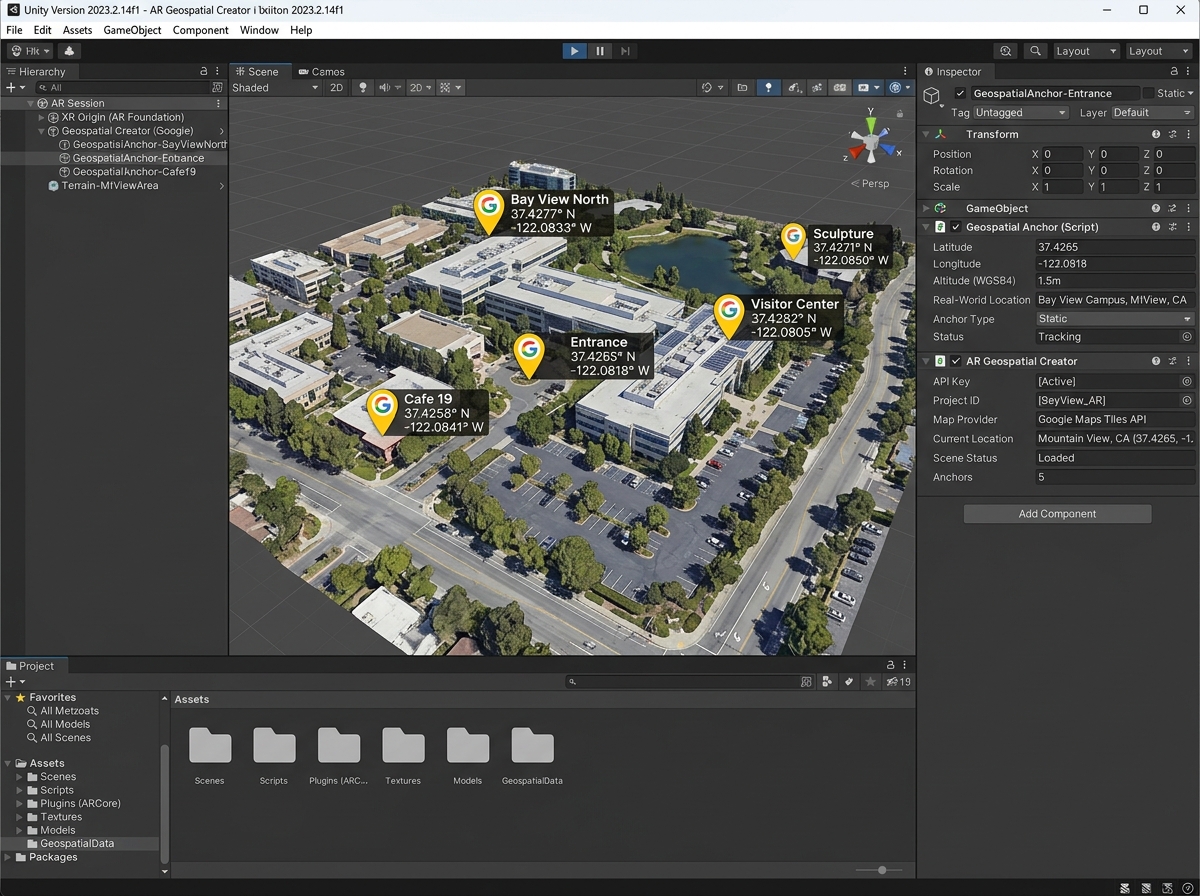
To build these experiences, we primarily use the ARCore Geospatial API from Google or Niantic Lightship. These platforms provide the “connective tissue” between the digital scene in Unity and the physical coordinates of the user. Google’s solution, for instance, utilizes Photorealistic 3D Tiles (the same data that powers Google Earth) to allow developers to see exactly where they are placing objects without ever leaving the Unity Editor.
Choosing the Right Anchor Type
One of the most critical decisions in your project is choosing how your virtual content “sticks” to the world. The ARCore Geospatial API offers three main types of anchors, each suited for different environments.
| Anchor Type | Horizontal Reference | Vertical Reference | Best Use Case |
|---|---|---|---|
| WGS84 | Latitude/Longitude | WGS84 Ellipsoid (Height) | Fixed altitude points, flying objects, or precise coordinate placement. |
| Terrain | Latitude/Longitude | Ground Level (VPS) | Placing objects on sidewalks, parks, or street level where ground height varies. |
| Rooftop | Latitude/Longitude | Building Top (Streetscape) | Placing markers on top of skyscrapers or digital billboards on buildings. |
Setting Up the Geospatial Environment for Location Based Augmented Reality Unity
Before we can drop a 3D dragon on top of the Eiffel Tower, we need to prep our development environment. We recommend using Unity 2022.3.x (LTS) for the most stable experience.
- Project Template: Start with the Universal Render Pipeline (URP). It’s optimized for mobile and handles the lighting for AR much better than the built-in renderer.
- Dependencies: You will need the ARCore Extensions (v1.44.0 or higher) and the Cesium Unity package. Cesium is the engine that renders the 3D map tiles in your editor, essentially giving you “Google Earth inside Unity.”
- Google Cloud Platform (GCP): You must create a project on GCP and enable the ARCore API, Map Tiles API, and Places API. Once enabled, generate an API key and restrict it to your app’s package name for security.
- Unity Player Settings:
- Switch the platform to Android (or iOS if using ARKit).
- Change the Scripting Backend to IL2CPP.
- Target Architecture must include ARM64.
- In XR Plugin Management, enable ARCore and check the Geospatial feature box.
By setting these up correctly, you ensure your project can communicate with the cloud to resolve the user’s location with high precision. For more on how these immersive setups drive business value, check out our guide on ar-vr-immersive-experiences.
Placing Content with Geospatial Anchors
Once the environment is ready, the fun begins: placing content. We use Geospatial Anchors to tell Unity exactly where an object belongs.
To obtain coordinates, you don’t necessarily need to travel to the site. You can use the Geospatial Creator Origin in Unity. By searching for an address or inputting latitude and longitude, the Cesium component will stream 3D tiles of that location directly into your Scene view.
- Pro Tip for Coordinates: Use Google Maps in “Satellite” mode. Right-click any spot to copy the latitude and longitude. However, be aware that Google Earth data might have a small error margin of a few meters compared to live GPS.
- Altitude Matters: GPS altitude is notoriously imprecise. If you use a WGS84 anchor and set the altitude to 0, your object might end up buried underground or floating 10 feet in the air. This is why we prefer Terrain anchors. They use Google’s Visual Positioning System (VPS) to find the actual ground level at those coordinates, ensuring your object sits flush on the pavement.
For a deep dive into the technical API calls, the ARCore Geospatial Anchors documentation is an essential bookmark for any developer.
Overcoming GPS Accuracy and Stability Challenges
The biggest “enemy” of location based augmented reality unity is GPS drift. Even the best smartphones can struggle with signal bouncing off tall buildings (the “urban canyon” effect). This leads to “flickering,” where your 3D model appears to jump around.
To stabilize your experience, we implement several strategies:
- Sensor Fusion: Don’t rely on GPS alone. Use the device’s gyroscope and magnetometer (compass) to maintain orientation even if the GPS signal momentarily drops.
- NativeToolkit: For projects requiring higher precision, some developers use the free NativeToolkit asset to get more frequent GPS updates than the standard Unity
Input.locationAPI provides. - Smoothing Algorithms: Implement a low-pass filter or a Kalman filter in your C# scripts to average out the GPS readings. This prevents the “jitter” and makes the object movement feel fluid.
- AR Hotspots: Instead of showing an object 100 meters away (where drift is most noticeable), use “Hotspots.” The content only activates or becomes visible once the user is within a 5–10 meter radius of the target coordinates.
Understanding these limitations is vital for creating ar-marketing-solutions that don’t frustrate the user.
Advanced Techniques and Real-World Applications
Now that we’ve covered the basics, how do we scale this for a city-wide game or a navigation app?
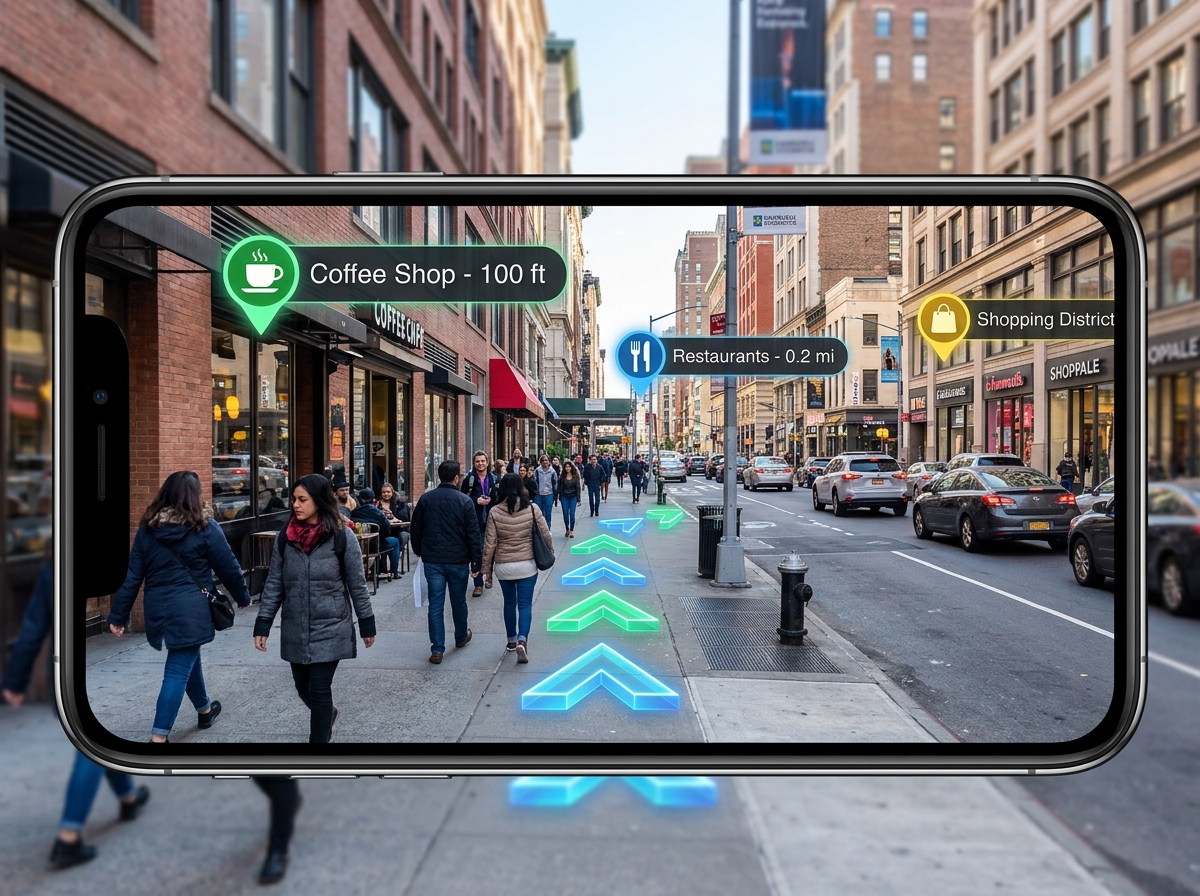
Real-world use cases for location based augmented reality unity are expanding rapidly:
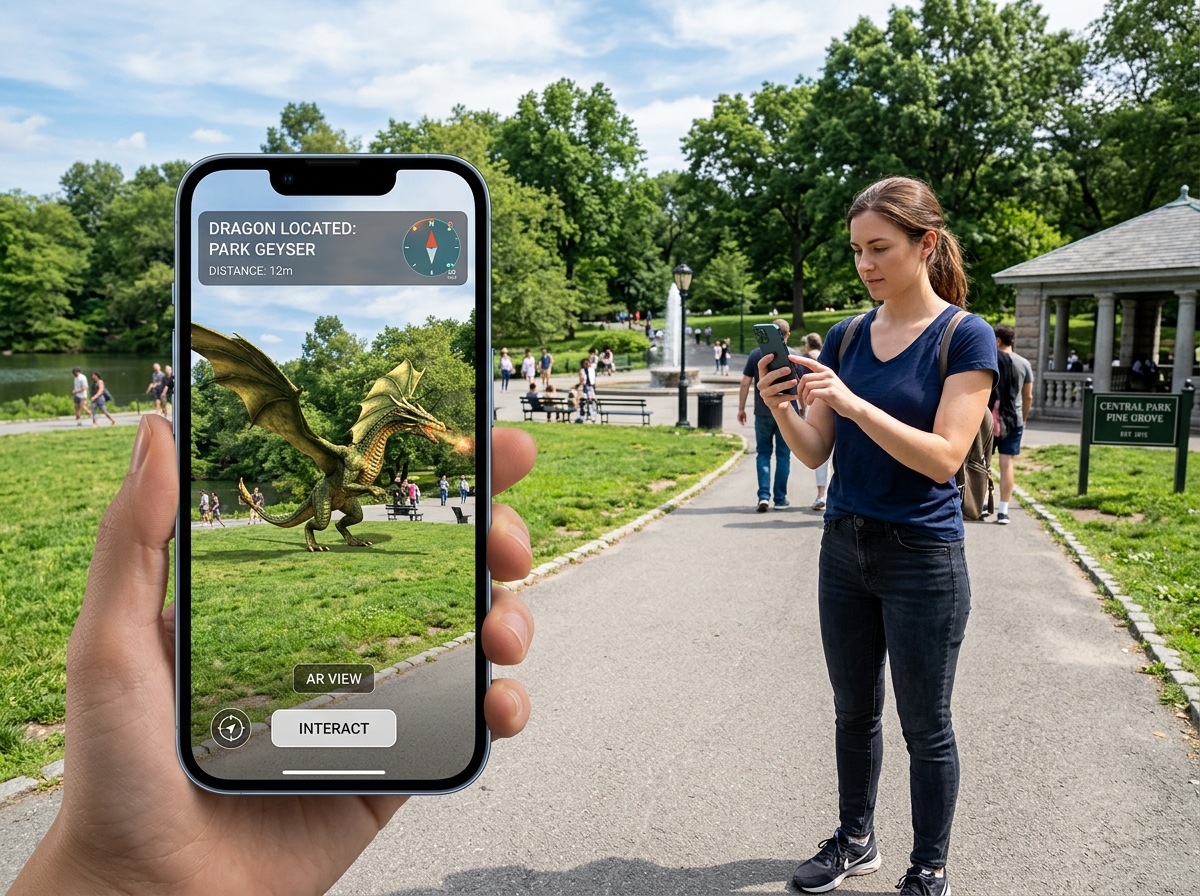
- Gaming: Think Pokémon Go-style experiences where players must visit specific parks or landmarks.
- Education: Historical tours where “ghost” versions of old buildings appear exactly where they stood 100 years ago.
- Navigation: Placing large 3D arrows in the sky to guide users through a complex festival ground or university campus.
Scaling Location Based Augmented Reality Unity for Multiple Targets
If your app needs to show 50 different points of interest (POIs) across a city, you shouldn’t manually place 50 anchors in your Unity scene. That’s not scalable. Instead, use the Google Places API in conjunction with a custom script like an AnchorDuplicator.
By sending a web request to the Places API with a specific “location bias” (e.g., a 10,000-meter radius around the user), you can programmatically retrieve coordinates for every “library” or “coffee shop” in the area. Your script can then loop through these results and instantiate a Geospatial Anchor for each one. This allows your app to stay relevant no matter where the user travels.
Scaling these experiences is a core part of building ar-vr-immersive-experiences that feel “alive” and reactive to the user’s environment.
Testing and Troubleshooting Your AR Experience
Testing location based augmented reality unity is notoriously difficult because you can’t always walk outside with your laptop.
- Editor Simulation: Use the Geospatial Creator to simulate the location. If the object looks right in the Editor’s 3D view relative to the Cesium tiles, it’s a good sign.
- Common Issues:
- White/Gray Screen: This usually happens on Android when the ARCore background isn’t initializing. Try quitting and reopening the app or checking your “Clear Flags” on the camera (set them to Skybox).
- Distance Locking: If an object stays at a fixed distance from the camera regardless of where you walk, your Geospatial Anchor isn’t resolving. Check your API key permissions and ensure the “Geospatial” checkbox is enabled in XR settings.
- Direction Errors: If the object is at the right spot but facing the wrong way, your device’s compass may need calibration. Implementing a “Heading” check in your script can help align the object to the North-East-South-West grid.
The Future of Geolocation and Web3 Integration
At Avanti3, we believe the future of location based augmented reality unity lies in persistence and ownership. Imagine an AR mural painted on a city wall that stays there for months, visible to everyone with the app. Or better yet, imagine that mural is an NFT that a creator can sell, and the owner gets a “digital rent” when people interact with it.
By integrating blockchain and Web3, we can create “Digital Real Estate.” Users can own specific coordinates and place their own augmented reality nfts for others to discover. This creates a new layer of digital engagement that turns the physical world into a monetizable, social platform.
As VPS (Visual Positioning Systems) like Niantic Lightship become more common, the accuracy of these experiences will drop from meters to centimeters. We are moving toward a “Mirrorworld” where every physical object has a digital twin, and Unity is the engine making it happen.
Are you ready to build the next generation of location-based experiences? Whether it’s for brand marketing or a community-driven game, the tools are now in your hands.
Explore our AR/VR immersive experiences to see how we can help you pin your brand to the world.